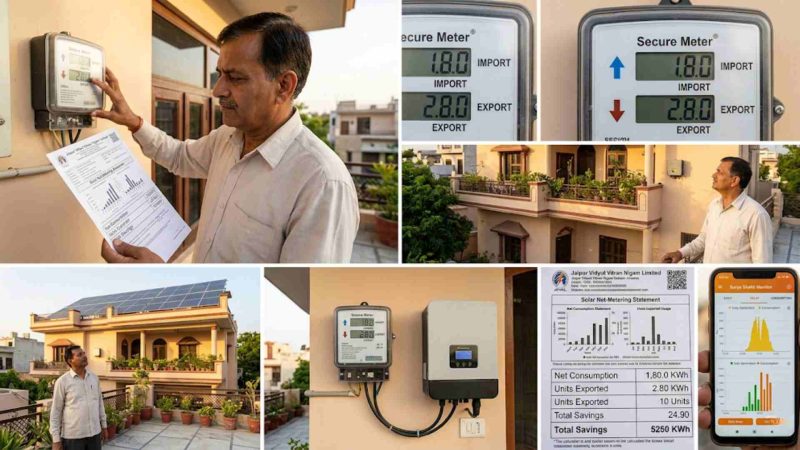
Switching to solar power is one of the smartest financial decisions an Indian homeowner or business owner can make. However, after the high-quality bifacial modules or N-Type TOPCon solar panels are mounted on your rooftop, a new question inevitably pops up when the first electricity bill arrives: How do I know if this is correct? To unlock the true financial picture of your green energy investment, you must learn how to check solar net-metering readings.
Understanding the rows of shifting digital numbers on your bidirectional meter allows you to verify your generation, monitor your exports, and protect yourself against billing errors. This comprehensive, ultra-detailed guide will walk you through reading your net meter screen, calculating your monthly savings under government frameworks like the PM Surya Ghar Muft Bijli Yojana, and decoding every cryptic line item on your solar utility bill.
Why Understanding Net Metering is Key to Maximizing Solar Savings

Before diving into the technical steps of reading the digital display on your wall, it is essential to understand what net metering actually does behind the scenes.
A standard traditional electricity meter only spins in one direction—forward—counting every single kilowatt-hour (kWh) or unit of electricity you draw down from the state grid. If you install a rooftop solar system with a traditional meter, any excess energy your panels generate during the afternoon peak hours will flow back into the grid, but your old meter might actually count it as consumption, driving your power bills up instead of down!
This is where the bidirectional net meter becomes the heart of your solar power plant.
The Mechanics of Bidirectional Flow for Net-Metering Readings
A solar net meter is an advanced digital device that monitors electrical traffic flowing in two separate directions:
- Inflow (Import): The electricity you pull from the utility grid when your solar panels aren’t generating enough power (such as during heavy cloud cover, late evenings, or nighttime).
- Outflow (Export): The surplus electricity produced by your solar panels during bright, sunny hours that your building does not instantly consume. This excess energy is pushed directly out into the utility grid for neighboring properties to use.
At the end of your billing cycle, your local power distribution company (DISCOM) looks at these two numbers. They subtract your total exported units from your total imported units. You are then billed only for the Net Consumption. If you exported more than you imported, those surplus credits are rolled over to the next month’s bill, systematically wiping out your recurring power costs.
How to Check Solar Net-Metering Readings Step-by-Step
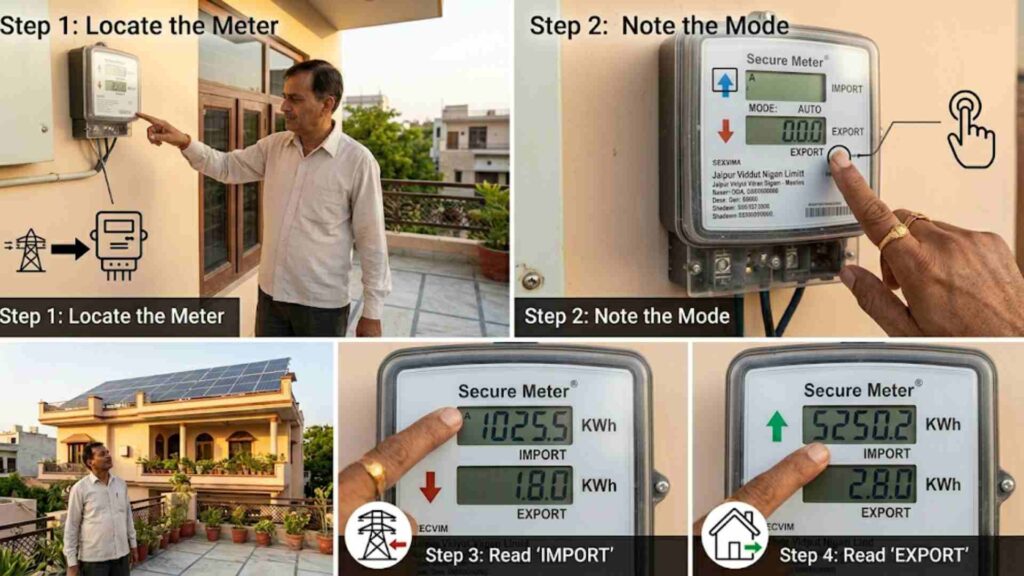
Walking up to a newly installed bidirectional digital meter can feel intimidating. The screen flashes a rotating sequence of numbers, codes, and abbreviations every few seconds. However, once you know what specific codes to look for, checking your data takes less than a minute.
Here is the exact sequence to follow when analyzing your digital meter display.
Step-by-Step Process: How to Check Solar Net-Metering Readings on LCD Screens
Modern digital net meters automatically loop through a carousel of display screens. Each screen stays active for roughly 5 to 8 seconds before switching to the next parameter. Alternatively, most meters feature a physical push-button (often green, black, or grey) on the front panel that allows you to manually skip ahead through the display sequence.
Identifying Time, Date, and MD Prior to Checking Solar Net-Metering Readings
The first few screens in the carousel loop typically display administrative system diagnostics. You will see:
- The current calendar date (DD:MM:YY format).
- The current real-time clock (HH:MM:SS format).
- The Maximum Demand (MD) measured in kilowatts (kW), representing the highest peak load drawn by your property at any single moment during the month.
Locating Active Energy Codes: How to Check Solar Net-Metering Readings Accurately
To figure out how to check solar net-metering readings accurately, you must ignore the diagnostic screens and pinpoint the cumulative active energy screens. These are measured in kWh (Kilowatt-hours), which correspond exactly to the “units” shown on your electricity bill.
Because net meters must capture two distinct directions of electricity, look closely at the display text labels or the tiny arrows on the edge of the LCD panel:
- Import Register (Grid to Home): Look for the label KWh Import, KWh Imp, or an arrow pointing towards the meter symbol (→ or ↓). This number shows the cumulative historical units you have bought from your DISCOM since the day the meter was commissioned.
- Export Register (Solar to Grid): Look for the label KWh Export, KWh Exp, or an arrow pointing away from the meter symbol (← or ↑). This number tracks the cumulative historical units your solar system has pumped back into the utility grid.
Important Note on Obscure Screen Codes: Many utility meters in India do not use English words like “Import” or “Export” on their screens. Instead, they rely on standardized international Obis Codes displayed in the top or left corner.
- Code 1.8.0 or 1.8.1 almost universally represents your Total Cumulative Import (Active Energy).
- Code 2.8.0 or 2.8.1 almost universally represents your Total Cumulative Export (Active Energy).
Recording the Net Active Energy Data for Solar Net-Metering Readings
Some advanced meters feature a built-in mathematical calculation screen labeled KWh Net (often designated by Obis Code 16.8.0). This display does the math for you in real-time, showing the current absolute difference between your historical imports and exports. If this screen isn’t programmed on your specific meter model, simply write down the raw Import and Export numbers and subtract them manually.
Common Net Meter Displays and Technical Parameters: How to Check Solar Net-Metering Readings
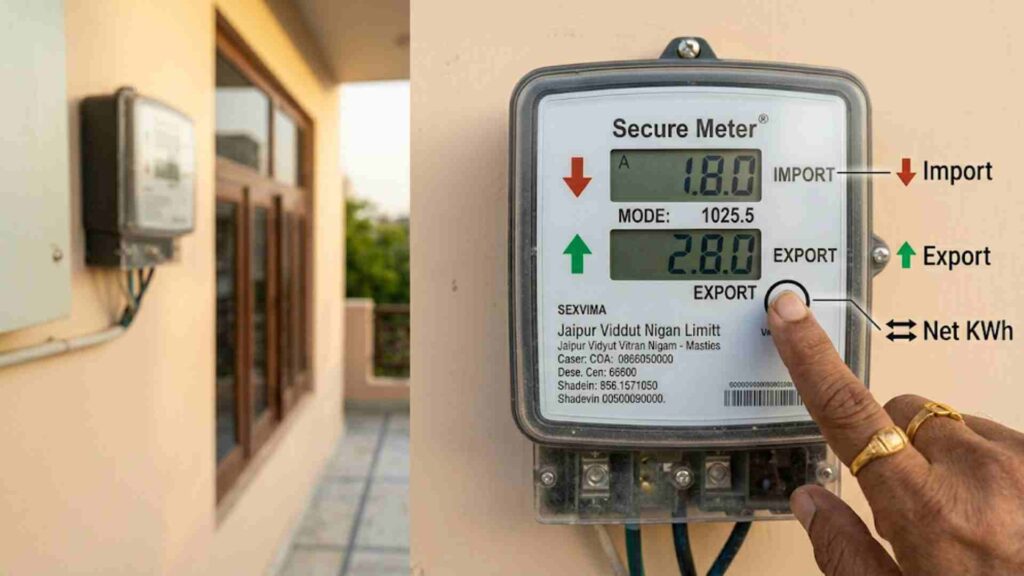
Different manufacturing brands across India—such as Secure, Genus, HPL, L&T, and Landis+Gyr—use slightly varied display formatting. To ensure you can easily recognize your data regardless of the brand mounted to your wall, here is a detailed breakdown of the technical parameter sequences commonly found on bidirectional meters.
The Complete Parameter Sequence Table
| Display Order | Parameter / Code Name | Measurement Unit | What It Means & How to Use It |
| 1 | Date & Time | DD:MM:YY / HH:MM | Confirms the internal clock is accurate. Crucial for Time-of-Day (ToD) tariff zones. |
| 2 | Phase Voltage (V1, V2, V3) | Volts (V) | Shows the incoming voltage levels from the grid line. Helps diagnose grid low-voltage drops. |
| 3 | Current Load | Amperes (A) | The real-time electrical current being drawn by your property at this exact second. |
| 4 | Cumulative Import (1.8.0) | kWh | The historical total of power units consumed from the utility grid. |
| 5 | Cumulative Export (2.8.0) | kWh | The historical total of solar surplus power units pushed back into the grid. |
| 6 | Net kWh (16.8.0) | kWh | The balance calculation (Import minus Export). Used directly by DISCOMs for billing. |
| 7 | KVARh / kVAh | kVAh | Apparent energy metrics used primarily for commercial and industrial solar billing accounts. |
| 8 | Maximum Demand (MD) | kW | The maximum power spike pulled within a 15–30 minute window this month. |
Step-by-Step Guide to Calculating Your Solar Savings Using Your Solar Net-Metering Readings
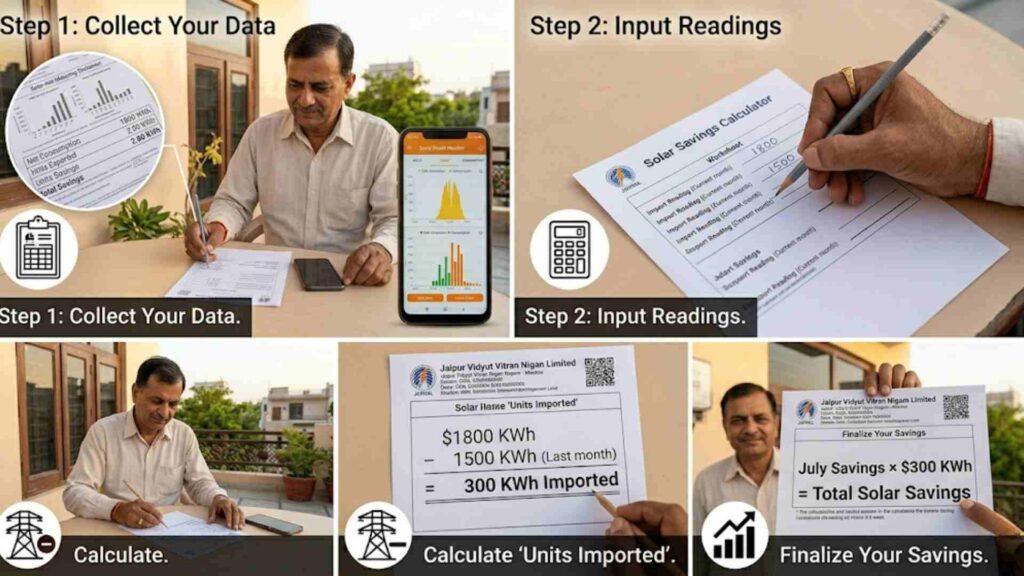
Learning how to check solar net-metering readings gives you the raw data, but the true satisfaction comes from turning those numbers into real financial insights. By performing a simple three-step calculation at the end of each month, you can track exactly how much cash your rooftop solar panels are keeping in your bank account.
The Math Behind the Savings: Converting Solar Net-Metering Readings Into Value
To find out your true financial performance, you need three numbers:
- Your current meter readings (Import and Export).
- Your previous month’s meter readings (from your last electricity bill).
- Your local DISCOM’s per-unit electricity tariff rate.
Formula 1: Find the Monthly Units Imported
Monthly Imported Units=Current Import Reading−Previous Month’s Import Reading
Formula 2: Find the Monthly Units Exported
Monthly Exported Units=Current Export Reading−Previous Month’s Export Reading
Formula 3: Calculate Your Net Billing Units
Net Billing Units=Monthly Imported Units−Monthly Exported Units
Scenario A: Your Net Billing Units are Positive
If your Monthly Imported Units are higher than your Exported Units, your solar system covered a significant portion of your energy load, but you still needed extra power from the grid (e.g., during high air conditioning usage or winter monsoon drops).
- If you imported 600 units and exported 450 units, your Net Billing Units equal 600−450=150 units.
- You will only be charged the variable energy rate for those 150 units, significantly lowering your overall expense.
Scenario B: Your Net Billing Units are Negative (Surplus Credits)
If your solar system produced a massive surplus during long summer days, your Monthly Exported Units might exceed your Imported Units.
- If you imported 400 units and exported 650 units, your Net Billing Units equal 400−650=−250 units.
- In this scenario, your variable energy charge for the month drops to zero. The 250 surplus units are converted into energy credits that are securely carried forward into the next month’s billing cycle to offset future consumption.
Decoding Your Solar Electricity Bill: Key Terms to Know
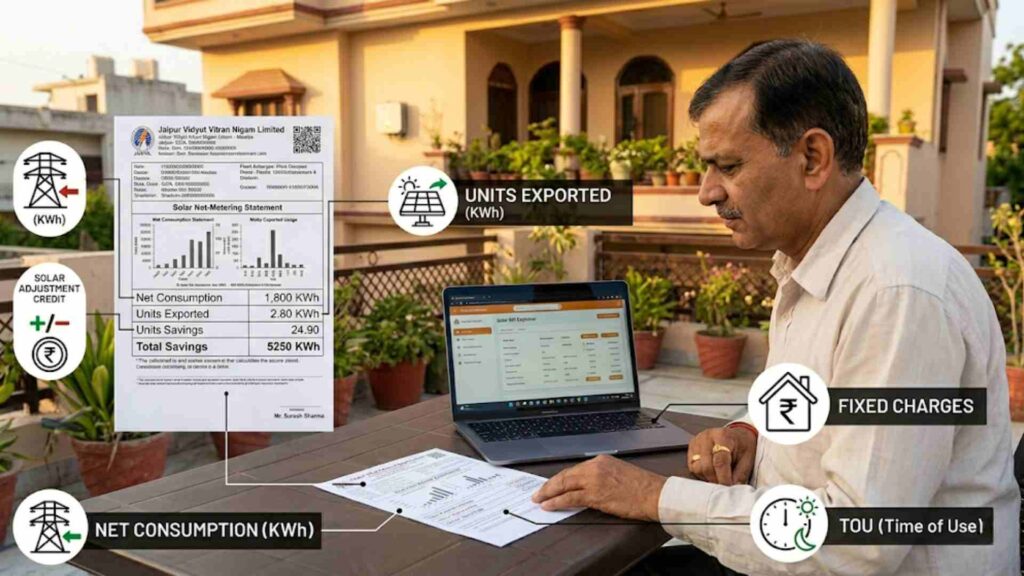
Even when you know how to check solar net-metering readings directly on the physical hardware outside your property, looking at the printed paper bill from your DISCOM can still feel confusing. Solar invoices contain specialized terminology that differs fundamentally from traditional utility statements.
Understanding these line items ensures you can cross-verify your physical meter numbers against the billing department’s calculations.
1. Fixed Charges / Sanctioned Load Fee
This is a fixed monthly fee based on your approved power capacity connection (e.g., a 5kW or 10kW sanctioned load). It is completely independent of how much electricity you use or generate. Even if your solar system generates 100% of your power needs and your net consumption is zero, you will still pay this baseline fixed fee to remain safely tied to the utility grid network.
2. Adjustments / Solar Credit Offsets
This section shows the exact number of surplus units exported during the previous billing cycle that were carried over to help pay down your current bill. If you built up a massive bank of credits during sunny spring months, you will watch them get applied here to offset costs during high-demand summer periods.
3. Electricity Duty and Tax Surcharges
Most states levy small local infrastructure development percentages, green energy cesses, or electricity duties. Pay close attention to your local DISCOM regulations: some regions charge electricity duty based on your gross consumption before solar offsets, while progressive regions only calculate taxes on your final net consumption units.
4. Banking Cycle Rollover Limits
In accordance with Indian state electricity regulatory commissions (SERCs), energy banking runs on an annual cycle (typically ending on March 31st each year). If you consistently accumulate surplus credits month after month, your DISCOM will carry them forward until the end of the financial year. At that point, any remaining unused units are automatically “settled” and bought back by the utility company at a pre-determined, government-approved tariff rate, adding a direct financial bonus to your solar investment.
Troubleshooting Common Net-Metering Reading Issues
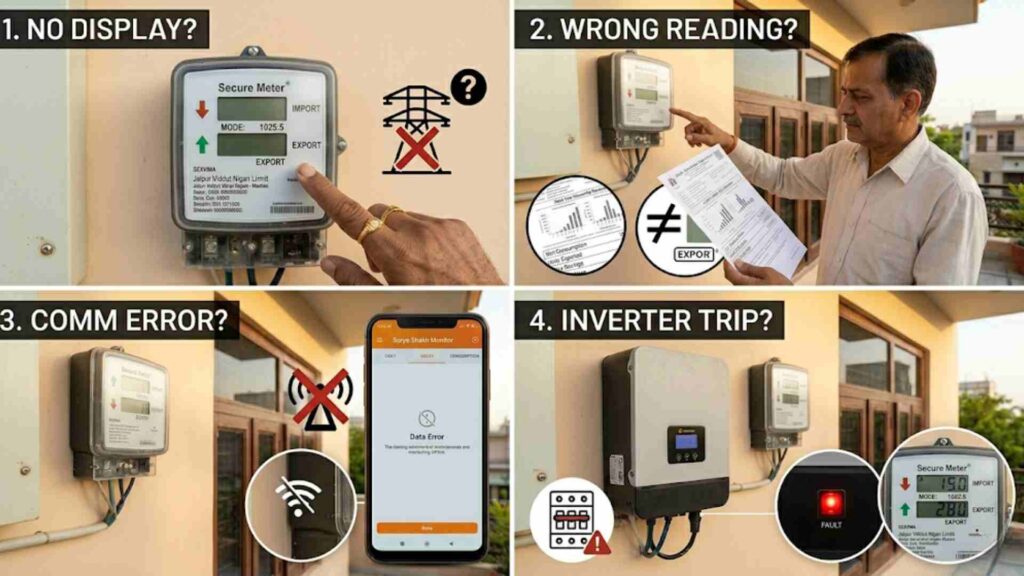
Occasionally, tracking your solar data doesn’t go smoothly. Digital hardware can experience communication errors, and physical components can experience technical faults. Knowing how to troubleshoot these common issues prevents unnecessary stress and ensures your solar performance metrics stay accurate.
Fixing Blank Screens and Power Interruptions When Checking Solar Net-Metering Readings
If you walk up to your box, press the cycling button, and the LCD screen remains completely dark, your system is experiencing an issue.
- Check the Grid Supply: Incoming voltage from the utility grid line powers bidirectional net meters directly for safety reasons. If a local power cut occurs or a main breaker trips outside, the meter screen shuts off entirely.
- Report a Blank Display Fault: If your neighborhood has stable power and your solar inverter is active, but the physical meter screen remains permanently dark, the internal display component has failed. Contact your DISCOM customer service line immediately to request an official inspection or hardware replacement.
Resolving Mismatches Between Inverter Apps and Physical Solar Net-Metering Readings
A very common point of confusion for new solar owners is seeing a massive production number on their smartphone solar inverter app (e.g., Growatt, Solis, Sungrow, or Fronius) while the physical net meter on the wall displays a much smaller “Export” number.
This is completely normal and indicates your system is working perfectly.
Your solar app tracks Gross Generation—every single unit of energy produced by the panels on your roof. The physical net meter on your wall, however, only records Surplus Generation.
Before your solar energy ever reaches the street grid to be registered by the net meter, it is first routed into your main distribution panel to run your home’s active loads, such as your refrigerator, lights, fans, and appliances. The net meter only registers the left-over units that your house didn’t immediately use up.
Net Meter Export=Gross Solar Generation−Instant Home Consumption
Understanding Reverse Energy Warning LEDs When Reviewing Solar Net-Metering Readings
Many modern digital meters feature a small red LED light labeled “Earth Fault,” “Reverse,” or a warning icon on the display screen. While a reverse indicator on an old traditional meter meant a serious wiring problem or energy theft, on a solar bidirectional meter, a reverse light simply confirms that power is actively flowing away from your house and back into the street. It is a visual confirmation that your solar panels are successfully overproducing and making you money.
Conclusion
Mastering how to check solar net-metering readings shifts control back into your hands. Instead of guessing your utility costs, you can step outside, press the display button, read the core import and export registers, and calculate your exact net units in under a minute.
Regularly tracking your bidirectional meter data helps you spot billing errors early, optimize your heavy appliance usage to match peak solar production hours, and see the direct financial impact of initiatives like the PM Surya Ghar Muft Bijli Yojana. Take a few minutes this week to locate your utility meter, find your active codes, and watch your solar investment pay off in real-time.
Frequently Asked Questions (FAQs)
Q1: What are the primary display codes I need to look for on a solar net meter?
Look for code 1.8.0 (or KWh Import) to see the units you bought from the grid, and code 2.8.0 (or KWh Export) to see the surplus solar units you sent back to the grid.
Q2: How often should I check my net meter readings?
Checking your readings once a month on your official billing date is ideal. This allows you to cross-verify your physical data against your printed utility bill to catch any mistakes.
Q3: Does my solar system still export energy through the meter during a grid power cut?
No. For safety reasons, all grid-tied systems have an “Anti-Islanding” feature that shuts down the system instantly during a power cut. This protects utility technicians working on the lines from electric shocks.
Q4: Why is my bill not zero even though my panels produce a massive surplus?
Even if you export more energy than you use, you must always pay the mandatory fixed utility costs. These include your sanctioned load connection fees, meter rent, and government electricity duties.
Q5: What should I do if the export units on my bill are lower than my meter readings?
Take clear, dated photos of your meter screen showing the export (2.8.0) value. Visit your local DISCOM billing office immediately with these photos to submit a formal bill rectification request.